
The Coupon Editor allows you to create or edit both single-store and multi-store coupons for your franchise. This article will explain all available options, including coupon codes, expiration dates, order type restrictions, and more.
Multiple coupon types are available to fit your store's needs. This article will review all settings within the Coupon Editor, while this article gives a walkthrough on each of the four main Coupon Scopes:
- Single Item
- Multiple Item
- Entire Order
- Buy One, Get One
How to Access the Coupon Editor
First, log into the HungerRush Restaurant Management HUB and select the Manage > Coupon tab (Direct link to this section)
After selecting this tab, you will see the main Coupon Management screen, which provides a summary view of all coupons for a given store in your franchise
(1) Select your store from the dropdown menu at the top left to see the coupons that are active for that store.
(2) Once a store is selected, all coupons that are assigned to that store will appear in the list window at the middle of the page.
- Basic information about the coupons, such as names, coupon values, online and active settings are visible on this main page
(3) The 'Upload Online Menu' button will update all of your active online coupons with the newest saved settings
- Note: Changes to online coupons may take up to 15 minutes to become visible on your online ordering page.
- Webpage caching can also cause outdated coupon settings to be visible on your device while your live site is using the updated settings. We recommend using a second device to check for online updates to avoid confusion.
(4) The 'Assign to Stores' button allows you to assign one or multiple coupons to any store locations in your franchise
- Select the coupons you want to assign by using the checkbox to the right of that coupon, then select your stores in the 'Assign to Stores' menu
(5) 'Show Multi-Store Coupons' will include coupons assigned to your selected store that are also assigned to other stores
- With this unchecked, only coupons assigned to your selected store and no other store will appear in this menu
(6) New Coupon opens the coupon editor to allow you to create a new coupon with your desired settings
(7) Online Sequence allows you to change the order that your online coupons will appear in on your 'Deals' page
(8) First Online Order allows you to create and edit settings for a coupon for first time Online Ordering customers
(9) The gear and trashcan icons can be used to edit or delete an existing coupon, respectively
After selecting 'New Coupon' or the gear icon beside an existing coupon, you will arrive at the Coupon Editor to edit a coupon's settings
The Editor contains the following tabs to customize each aspect of your coupons:
General: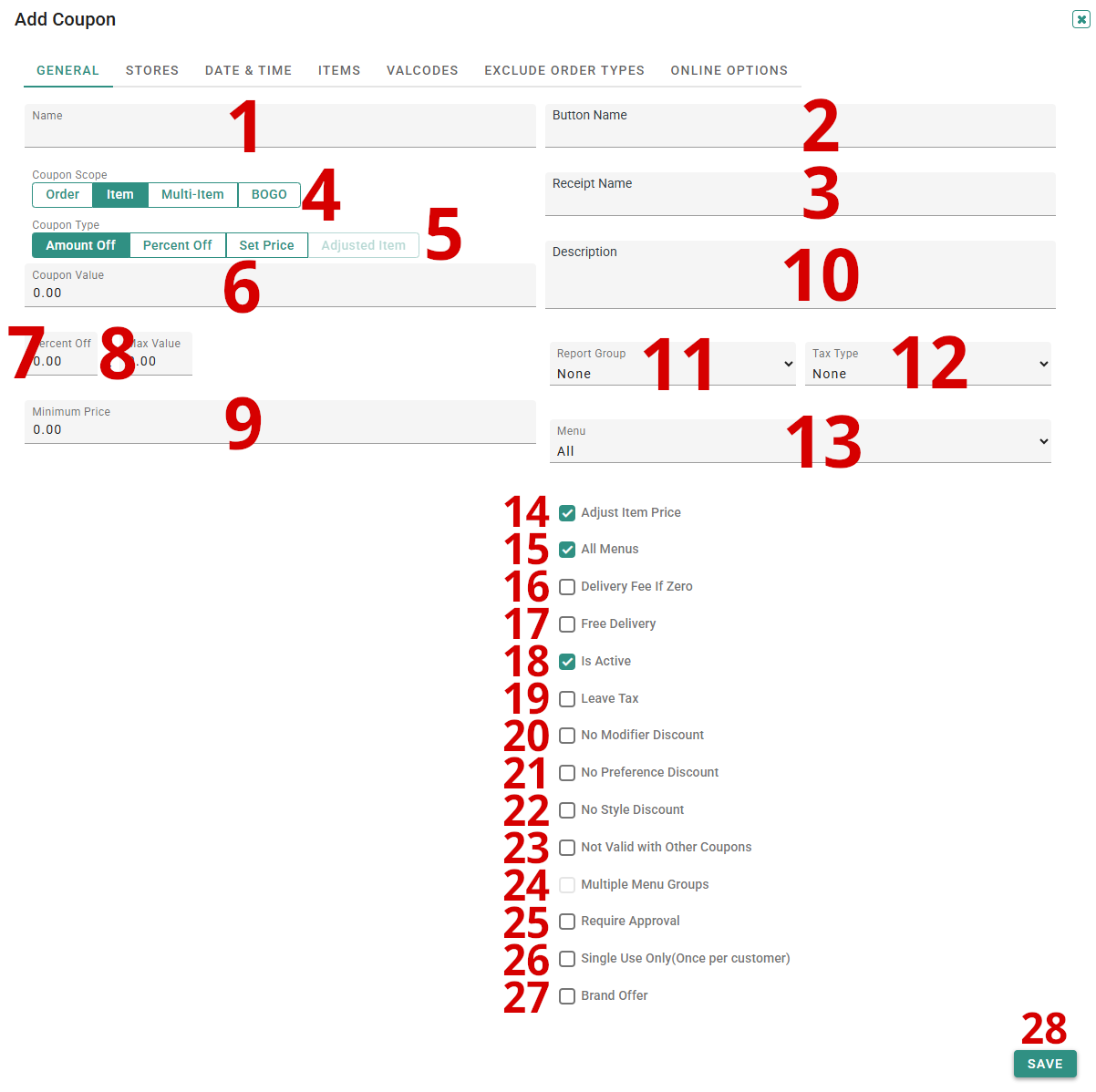
(1)(2)(3) The Name, Button Name, and Receipt Name fields allow you to customize the name the coupon appears under in multiple locations
- (1) Name is used internally in the Coupon Editor only. This field will not be seen by customers.
- (2) Button Name is used on the POS order entry screen when an employee is adding the coupon to an order
-
(3) Receipt Name is used on the order details screen, the online ordering checkout page and on printed customer receipts
- This will be the primary name seen by customers.
- Note: The Online Name seen on the Deals page is customized separately in the 'Online Options' tab (see (5) in the Online Ordering tab section later in this article)
(4) Coupon Scope determines the main behavior of the coupon, i.e. whether the coupon applies to one item, multiple items, or an entire order. Currently, there are four coupon scopes that can be selected:
-
Order scope applies to an entire order, usually restricted by a qualifying amount
- Example: A "$5 off any order of $25 or more" coupon would use the Order scope.
-
Item scope applies to a single item, selected in the 'Items' tab
- Coupons in this scope can be set to a specific menu item, group, size, and/or style, but will only be able to apply to one item on an order.
- Example: A "Large Veggie Pizza for $12" coupon would use the 'Item' scope.
-
Multi-Item scope applies to multiple items, selected in the 'Items' tab
- Coupons in this scope can be configured for multiple specific items or can be used to select one item out of multiple possible items.
- Like the Item scope, items in this scope can be set to a specific item/group/size/style, or can be left with any item within a group, any item in a specific style, etc.
- Example: A "Large Pizza and Breadsticks for $20" coupon or a "Choice of Breadsticks, Cinnamon Sticks, or Salad for $5" would both use the 'Multi-Item' scope.
-
BOGO (Buy One, Get One) scope applies to two items, selected in the Items tab
- The 'Buy One' item is required for the coupon to be used, while the 'Get One' item can be set to a reduced price
- Like the Item and Multi-Item scopes, these items can be set to a specific menu item or more general categories
- Example: A "Buy a Large Pizza, get a Small Cheese Pizza for 50% off" coupon would use the 'BOGO' scope.
Important Note: Each coupon scope has different available settings and coupon types. The sections below will detail which settings are available or restricted for each scope.
(5) Coupon Type determines the method used to apply the discount of the coupon:
-
Amount Off will deduct the Coupon Value from the item(s) or order
- This type is available for all coupon scopes
- See (6) below for more details on the Coupon Value setting
-
Percent Off will alter the price of the item or order by the amount set in the Percent Off field
- This type is not available for Multi-Item scope coupons
- See (7) below for more details on the Percent Off field
-
Set Price will change the price of an item to the Coupon Value
- This type is not available for Order or Multi-Item scope coupons
- See (6) below for more details on the Coupon Value setting
-
Adjusted Item will change the price of each item in a Multi-Item coupon to match the Coupon Value
- This type is only available for Multi-Item scope coupons
- See (6) below for more details on the Coupon Value setting
(6) Coupon Value is the number used alongside the Coupon Type to determine the exact discount applied by the coupon.
Depending on the Coupon Type, the Coupon Value will either be the amount deducted off of an item or an order, or it will be the final price of an item or items the coupon applies to:
-
For 'Amount Off' type coupons, the Coupon Value is the amount that will be deducted from the item(s)/order when the coupon is applied.
- Example: An Item scope, Amount Off type coupon with a Coupon Value of '$3.67' would deduct $3.67 from an item when applied (unless a minimum price is set).
-
For 'Set Price' and 'Adjusted Item' type coupons, the Coupon Value is the final price of the item(s) after the coupon is applied.
- Example: An Item scope, Set Price type coupon with a Coupon Value of $17.38 would set the price of an item to $17.38 when applied.
- For 'Percent Off' coupons, the Coupon Value is not used and cannot be adjusted.
- Important Note: 'Minimum Price' and 'Qualifying Amount' settings may cause the final discount/item price to be different from the Coupon Value. See (9) below for more details on Minimum Price/Qualifying Amount settings
(7) Percent Off is the value used alongside Percent Off type coupons to determine the exact percentage taken off of an item/order
- Example: An Item scope, Percent Off type coupon with a Percent Off value set to 15% would deduct 15% off the price of an item when applied.
- The Percent Off field is only used by Percent Off type coupons.
(8) Max Value limits the maximum value of a Percent Off coupon to a specific dollar amount, to prevent a Percent Off coupon from deducting a larger amount from a large order.
- Example: An Order Scope, Percent Off type coupon set to 20% off with a Max Value of $20 would deduct the standard 20% from any order under $100, but the coupon discount would stay at exactly $20 for any order above $100 (since 20% above that point would always be over $20).
- Max Value is only used by Percent Off type coupons.
(9) Minimum Price is the lowest value that an item/items can be discounted to when the coupon is applied, while Qualifying Amount is the minimum order subtotal that must be reached before the coupon can be applied
-
The same box will control the Minimum Price on Item/Multi-Item/BOGO scope coupons and the Qualifying Amount setting for Order scope coupons.
- The name at the top right of the box will automatically change to reflect this if the scope is adjusted, to avoid confusion
- For Item/Multi-Item/BOGO scope coupons, the Minimum Value setting will override the Coupon Value in situations where the discount from that value would cause the item(s) price to drop below the Minimum Value
- Example: If an Item type coupon's Coupon Value is configured to discount a Large 1-Topping Pizza to $13, and the Minimum Value is also set to $13, the final price of the item after will always be $13 even if the customer removes a topping to make the initial item price lower.
- Minimum Price can also be used with Multi-Item scope coupons to ensure that the final price of a discounted item is the same, even when the coupon can be applied to different items with different prices.
(10) Description is a short text section that will appear alongside the Coupon on your POS
- Note: For the description used by coupons on your Online Ordering site, please see (6) in the section at the end of this article on the 'Online Options' tab.
(11) The Report Group dropdown selects the reporting group the coupon's discounts will be included alongside
- We recommend adding a unique report group for your coupons to keep these values separate from menu item sales.
- For more information on Adding/Editing Report Groups, see Step 2 at the bottom of this linked article (Replace the 'Donations' name with the name of your desired Report Group)
(12) Tax Type determines which tax rate is used when calculating entire order or multi-item coupon discounts
-
For Item and BOGO type coupons, the Tax Type setting is not used.
- These coupon types use the tax type of the item they are applied to for discount calculation.
- IMPORTANT: Leaving this set to 'None' on Order and Multi-Item Type Coupons will prevent the tax from being discounted on orders that the coupons are applied to, potentially overcharging the order tax to customers.
(13) The Menu dropdown selects the store menu that this coupon is attached to, which determines the items available for the coupon to apply to
- Example: If a store has a 'Regular' menu and an 'Event' menu, and a coupon has its Menu set to the 'Regular' menu, then the coupon will only be available when the store is using the 'Regular' menu as the active menu. This coupon would not be usable when the 'Event' menu is active.
-
Note: If your coupon is intended to be used on all of your store's possible menus, we recommend selecting your primary menu with this dropdown and enabling the (15) 'All Menus' option (details below).
- Selecting the 'All' option in the (13) Menu dropdown can potentially cause issues with item selection and applying the coupon on Online Ordering
(14) Adjust Item Price determines how the coupon will visually be applied on the order ticket for Item/Multi-Item/BOGO Coupons:
-
If Disabled, the coupon will be listed as a discount on the line after the item(s) it is applied to.
-
If Enabled, the listed price of the item(s) will be adjusted to reflect their post-discount total, and the coupon will be listed on a separate line without a discount price beside it.
- Note: This has no effect on Order scope coupons.
(15) All Menus selects whether this coupon is visible and able to be applied across all of your store's menus
-
It is highly recommended to utilize this setting instead of selecting 'All' in the dropdown under (13) Menu select
- The 'Menu' dropdown is intended to select the Primary menu that the coupon is associated with, used as the source for available items in the coupon editor and other menu-specific options
-
Note: In order for Item/Multi-Item/BOGO coupons to function properly, the same item(s) must exist on all of your store's menus.
- We recommend only using the 'All Menus' setting for coupons that only apply to items that were directly copied over from another existing menu.
(16) Delivery Fee if Zero allows you to keep the delivery fee added to an order, even if that order is discounted to $0 by this coupon.
- With this disabled, the delivery fee will change to $0 if the order total is reduced to $0 by this coupon.
NOTE: For Item Scope, Set Price Type Coupons with 'Apply by Time' enabled, an additional option will appear before 'Delivery Fee if Zero' called 'Beat the Clock'.
- This option will set the price of an item to the current time when the coupon is applied. Example: An item sold at 3:19 PM with this coupon applied would have its price set to $3.19.
(17) Free Delivery will remove the delivery fee from any order this coupon is applied to
(18) Is Active is the main setting that determines whether the coupon is visible and able to be used
- If you plan on temporarily removing a coupon but bringing it back to your menu at a later date, we recommend disabling this setting over deleting the coupon, as inactive coupons still retain their original settings and can be re-enabled by simply reactivating the Is Active checkbox.
- Note: Expiration dates and Expired Valcodes can also cause coupons to be marked inactive, even if this setting is still Enabled. See the 'Date and Time' and 'Valcodes' sections for more information on these settings.
(19) Leave Tax will leave the charged tax amount at the pre-discount total before the coupon was applied
(20) No Modifier Discount will exclude any upcharged modifiers on an item from being included in the discount or qualifying amount
- Note: This setting is not available on Order scope coupons. See the following setting ('No Discount Items in Qualifying Amount') for more information.
- Example: If an order coupon with this setting enabled has a qualifying amount of $5, and an order consists of one item with a base price of $4.50 and an added modifier with an upcharge of $1, the coupon would not be able to be applied to the order because the upcharged modifier would not be included in the order subtotal compared against the qualifying amount
(20) On Order scope coupons only, the 'No Modifier Discount' setting is replaced with 'No Discount Items in Qualifying Amount'
- This setting excludes any items that already have a discount applied from another coupon from being counted towards a coupon's qualifying amount restriction.
- This setting is replaced with 'No Modifier Discount' for any other coupon scope (See above setting for more details)
- Example: If an order contains $20 worth of items, but one item already has an Item scope coupon applied, then a coupon with a required qualifying amount of $20 would not function because the discounted item would not count towards the qualifying amount.
(21) No Preference Discount will exclude any upcharged preference members on an item from being included in the discount or qualifying amount
- Example: If an order coupon with this setting enabled has a qualifying amount of $10, and an order consists of one item with a base price of $9 and a selected preference member with an upcharge of $2, the coupon would not be able to be applied to the order because the upcharged preference member would not be included in the order subtotal compared against the qualifying amount.
(22) No Style Discount will exclude any upcharged style selected on an item from being included in the discount or qualifying amount
- Example: If an item coupon with this setting enabled normally lowers a Large Cheese Pizza to $6, but the customer selects a large pizza with a crust style with a $1 upcharge, the final price with the coupon applied will be $7 as the upcharged style will have its price added after the discount is applied.
(23) Not Valid with Other Coupons will prevent the coupon from being used alongside any other coupon on an order
-
This includes using the same coupon multiple times; Leave this setting disabled if you want customers to be able to use the coupon deal multiple times on an order
- Example: If you have an Item scope coupon for a deal on a Large Pizza, and you want customers to be able to use the coupon multiple times if they order multiple Large Pizzas, leave this setting disabled.
(24) Multiple Menu Groups will allow an Item scope coupon to be used on an item that is selectable from two menu groups, regardless of which group the item is selected from
-
Example: If your store has a 'Cinnamon Sticks' item in both your Sides group and your Desserts group, this setting would allow the same Item scope coupon to function for both of these items, regardless of which one was added to the order
- Important Note: The items must have the exact same Item Name for this to function. The Button Name, Receipt Name, and Kitchen Name can be different, but the internal Item Name in the menu editor must be exactly identical. Item names cannot be changed without deleting and remaking an item.
(25) Require Approval will stop the coupon from being applied to an order unless a manager login is logged into the POS with the 'Approve Coupon' security enabled.
(26) Single Use Only (Once per Customer) will restrict the coupon to only be used once ever per customer
- If you instead only want your coupon to be used once per order, use (23) Not Valid with Other Coupons
-
This will require full customer information (phone, address, and first/last name) to be attached to the order, either through an employee adding this info or the customer logging into their online ordering account.
- Until a valid customer is attached to the order, the coupon will not be visible in the Coupons menu.
(27) Brand Offer is an internal setting for large-scale coupon campaigns for every store in a large franchise. This is used by marketing and corporate teams for internal settings and should not be enabled on new coupons without authorization.
(28) On any tab, you can use the 'Save' button at the bottom right to confirm your changes or add a new coupon
Stores:
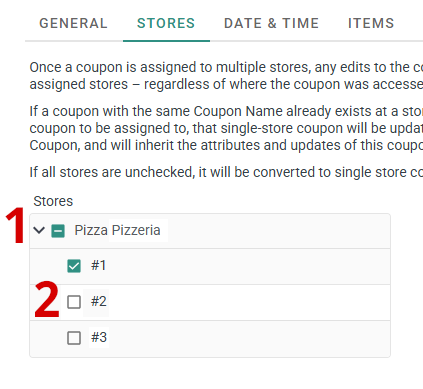
The Stores tab allows you to select the stores in your franchise that you want this coupon to be valid at
(1) The top of the store list contains the franchise name, along with a checkbox to show whether the coupon is valid at all, some, or no stores in the franchise, and an arrow to expand the stores list below
- A checkmark indicates a coupon valid at all stores, while a hyphen ( - ) icon indicates the coupon is only valid at some store locations.
- An empty checkbox indicates the coupon has not been assigned to any store in the franchise.
(2) Selecting the arrow icon beside the franchise name will expand the stores list beneath
- Stores with a green checkmark have the coupon active, while stores with an empty checkbox do not have the coupon assigned.
- Some larger franchises also have 'regional' sections that must also be expanded to see all stores assigned to that region
Tip: You can assign/remove a coupon from all stores in a region/franchise at one time by selecting the checkbox next to the franchise/region name, if desired
Important Note: Changes to store assignments will not take effect on online ordering until the 'Upload Online Ordering' button is selected in the main Coupon Editor window
Date and Time: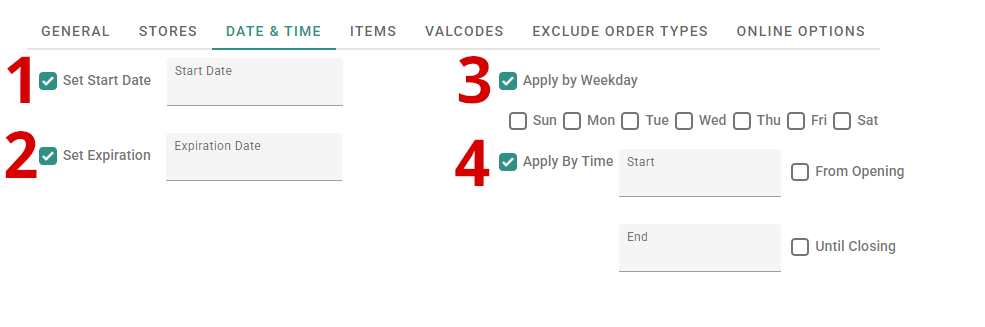
The Date and Time tab gives you control of which dates your coupon is active for, as well as controlling the time of day and days of the week the coupon can be used.
(1) The Start Date is the date the coupon will go live and can be used normally
- Before the start date is reached, the coupon will remain inactive and invisible on POS/online ordering
(2) The Expiration Date is the date the coupon will cease to function and become inactive
- The expiration date should always be set to the business date after you last want the coupon to be useable.
- Example: A coupon with an expiration date of June 7, 2026 could be used normally on every day until June 6, 2026. Orders placed on June 6 can use the coupon, but orders on June 7 will no longer be able to use the coupon.
(3) Apply by Weekday allows you to set the coupon to only be active on certain days of the week
-
This setting also works alongside 'Apply by Time' (i.e. a coupon can be set to only be active at certain times of day on specific days of the week)
- See (4) below for more details
- Note: Coupons with this setting enabled will only be visible on the selected days. On weekdays that are not enabled, the coupon will not appear at all on your Online Ordering site or on your POS
-
Example: If a 'Saturday Special' coupon has 'Apply by Weekday' enabled with 'Saturday' as the only day selected, it would be valid on every Saturday for as long as the coupon is set to active.
- This coupon would not be visible on any other weekday (Sunday through Friday).
(4) Apply by Time allows you to create coupons that will only be active at certain times each day
-
The 'From Opening' and 'Until Closing' options allow you to set the start or end of the time range to be the same as your store's set Hours of Operation.
- This will ensure your coupon stays active from the start of the business day, even if your starting hour changes on different weekdays.
-
This setting also works alongside 'Apply by Weekday' (i.e. a coupon can be set to only be active at certain times of day on specific days of the week).
- Example: A coupon with both settings enabled could be configured to only be useable between 11AM and 1PM on Wednesdays.
- Note: Coupons with this setting enabled will only be visible at the selected times. Outside of the specified times, the coupon will not appear at all on your Online Ordering site or on your POS.
- Example: If a 'Lunch Special' coupon has 'Apply by Time' enabled with the time range set to 11AM to 1PM, the coupon will first appear each day at 11AM and be usable on orders until 1PM.
Items:
The Items tab changes format depending on which coupon scope is currently selected:
- For Order scope coupons, this tab is unused
-
For Item scope coupons, the tab will contain one row of dropdown boxes to select the applicable item:
-
The four dropdowns in this section (Menu Group, Item, Size and Style) are used to specify which menu items the coupon can be applied to
- The groups/items/sizes/styles in this menu are all sourced from the selected menu in the 'General' tab; see (13) in the 'General' section of this article for more information on selecting a coupon's menu.
-
(1) Menu Group sets the group whose items the coupon can be applied to.
- This option can be left to 'All' if you want your coupon to apply to any single item on your menu.
- You must select a menu group before any other specific options will appear in the item/size/style dropdown menus.
-
(2) Menu Item selects a specific item within the selected Menu Group that this coupon can be applied to.
- Selecting a group and leaving this option set to 'All' will allow any item in the selected group to qualify for the coupon.
-
(3) Menu Size selects a size within the selected Menu Group that allows this coupon to be applied.
- This can be used alongside the 'Item' and/or 'Style' restriction to specify a unique item/size/style that the coupon can be applied to (i.e. a coupon that can only be applied to a Large Thin-Crust Cheese Pizza).
- Setting this to 'All' will allow the coupon to be valid with any size of qualifying item.
-
(4) Menu Style selects a style within the selected Menu Group that allows this coupon to be applied.
- This can be used alongside the 'Item' and/or 'Style' restriction to specify a unique item/size/style that the coupon can be applied to (i.e. a coupon that can only be applied to a Large Thin-Crust Cheese Pizza).
- Setting this to 'All' will allow the coupon to be valid with any style of qualifying item.
-
The four dropdowns in this section (Menu Group, Item, Size and Style) are used to specify which menu items the coupon can be applied to
-
For Multi Item scope coupons, the tab will contain a table of included items, as well as dropdown menus for adding items to the table with various options:
-
(1) (2) (3) (4) The Menu Group/Item/Size/Style options all function identically to the options with the same names in the Item scope version of the 'Items' tab.
- These allow you to select the items the coupon will be applicable for by choosing options in each dropdown menu, followed by selecting the (8) Plus (+) icon at the right of the row of dropdowns
- For more information on these dropdown menus, see the options with the same names/numbers in the Item scope section above this one.
-
(5) Is Required specifies whether this item will be part of the 'Required Items' list for this coupon
-
Multi-Item coupons separate their assigned items into a 'Required' and 'Non-Required' list:
- 'Required' items are items that will always be part of an order that a multi-item coupon should be valid for
- 'Non-Required' items are other items that a customer can choose from to finish fulfilling a multi-item coupon
- Example: In the above screenshot, the coupon is set up as a deal to get a discount on a Large Cheese Pizza and a choice between Breadsticks or Garlic Knots. The Large Cheese Pizza is marked 'Required' because it should always be included on any order that this coupon will be used for, while the Breadsticks and Garlic Knots are marked 'Non-Required' because the customer can choose to include one item or the other to qualify for the deal.
-
The number of non-required items that must be selected to fulfil a coupon can be selected using the (9) 'Pick Any' dropdown menu
- See section (9) below for more details
-
IMPORTANT NOTE: If a multi-item coupon does not involve a choice between any included items, all items should be marked 'Is Required - No' to avoid other issues.
- 'Is Required - Yes' is only intended to be used for multi item coupons that also include non-required items.
-
Multi-Item coupons separate their assigned items into a 'Required' and 'Non-Required' list:
-
(6) Max Mod Value restricts how much of the coupon value discount can be used on additional charges from modifiers on an item
- This can be useful for ensuring proper pricing with coupons for multiple items with modifiers that can have variable upcharges.
- Example: If a multi-item coupon for 3 1-Topping Pizzas has the max mod value of each pizza set to the price of one additional topping, then the coupon will charge the regular upcharge amount for any additional topping beyond one on any pizza.
- This can also be set to a unique value per-item if desired.
-
(7) Surcharge will reduce the discount by a set amount when the selected item is included on an order
- This is intended to be used alongside Non-Required items (see (5) above) for options that have an additional upcharge
- Example: If Cheese Breadsticks are added to a multi-item coupon with a surcharge of $1, then the coupon discount will be $1 less than its usual amount when applied to an order including Cheese Breadsticks.
- (8) Once you are finished with selecting a group/item/size/style and inputting your desired settings, select the Plus (+) icon to the right of the row to add the item to the table below
-
All items added to the table will be required to be on an order before the coupon can be applied, with the following exceptions:
-
(9) The Pick Any dropdown allows you to specify how many of the items within the table must be on an order before a coupon can be applied
- This is useful for coupons or deals that allow the customer to choose between multiple items (i.e. 'Pick any 2' deals)
-
This setting only applies to items set to 'Is Required - No'
- Items marked as required will not count towards the 'Pick Any' count; See section (10) 'Require Any' below for more details on the related setting for Required items.
- For more information on Required/Non-Required items, see section (5) above
- Example: A 'Pick Any 2 Appetizers' coupon could be configured by adding 5 non-required items to the table in the 'Items' tab, then setting the 'Pick Any' dropdown to '2'. The coupon would then be valid for orders containing at least 2 of the 5 items that were added to the coupon.
-
(10) The Require Any dropdown is similar to the 'Pick Any' dropdown, but applies only to items that are marked 'Is Required - Yes' in the table
- This can be useful for coupons that will offer multiple choices to the customer.
-
Example: A coupon that offers a choice between 4 Side items and a choice between a Medium Pizza and a Calzone could be set up with the Pizza and Calzone set as Required items, the 4 Side items set as Non-Required items, and the 'Pick Any' and 'Require Any' options both set to '1'.
- This configuration would let customers use the coupon if their order contains any one of the four sides and either a calzone or medium pizza.
- See section (9) 'Pick Any' above for more information on the related setting for Non-Required Items.
-
(9) The Pick Any dropdown allows you to specify how many of the items within the table must be on an order before a coupon can be applied
- (11) To remove an item from the middle table, select the Trashcan icon to the right of that item
- Examples of common multi-item coupon configurations:
-
(1) (2) (3) (4) The Menu Group/Item/Size/Style options all function identically to the options with the same names in the Item scope version of the 'Items' tab.
Coupon for Two Medium 1-Topping Pizzas:
- The coupon is configured for the 'Build your Own' pizza specifically; all specialty pizzas are not valid
- Since this store's toppings are $1.99 each, both pizzas can have up to one topping before the other toppings are upcharged.
-
Because there are no 'Pick Any' options active, all items are marked 'Is Required - No'
- 'Is Required - Yes' is only used for deals involving item choices (examples below)
Coupon for a Large Cheese Pizza and choice of 6pc Boneless or Bone-In Wings:
- The Pizza has no Mod Value applied, so any additional toppings will be charged at their normal cost.
- The Pizza is also marked as a Required item (Is Required - Yes), so it must always be a part of an order before the coupon can be applied.
- The two Wings items are added as Non-Required items (Is Required - No), and 'Pick Any' is set to 1, so only one of those two items are required for the coupon to be valid
Coupon for a Large Cheese Pizza and Bread Sticks, with an extra Surcharge for Cheese Sticks
- The Pizza has no Mod Value applied, so any additional toppings will be charged at their normal cost.
- The Pizza is also marked as a Required item (Is Required - Yes), so it must always be a part of an order before the coupon can be applied.
- Both Breadsticks items are added as Non-Required Items (Is Required - No), and 'Pick Any' is set to 1, so only one of those two items are required for the coupon to be valid
- The 'Bread Stix with Cheese' item has an applied upcharge of $2, so the price reduction of the coupon will be $2 less than if the customer chose the 'Bread Stix' item instead
Choice of 12pc Boneless or Bone-In Wings and One of Three Sides
- Both Wings items are added as Required Items (Is Required - Yes), and the 'Require Any' setting is set to 1, so only one of those two items is required to be on the order
- All three of the appetizer items (Fries, Bread Stix, Cinnamon Stix) are added as Non-Required Items (Is Required - No), and the 'Pick Any' setting is set to 1, so only one of these items is required on the order
- As long as one Non-Required side item and one Required wings item are on the order, the coupon can be applied.
-
For BOGO scope coupons, the Items tab is largely similar to the Multi-Item scope version of this tab:
-
(1) (2) (3) (4) The Menu Group/Item/Size/Style options all function identically to the options with the same names in the Item and Multi-Item scope versions of the 'Items' tab.
- These allow you to select the items the coupon will be applicable for by choosing options in each dropdown menu, followed by selecting the (8) Plus (+) icon at the right of the row of dropdowns
- For more information on these dropdown menus, see the options with the same names/numbers in the Item or Multi-Item scope sections above this one.
-
(5) Buy One/Get One selects whether the item you are configuring will be added as the 'Buy One' or the 'Get One' item for this deal
- For BOGO scope coupons, only one Buy One and Get One item each can be added to the coupon table.
- The 'Buy One' item will be priced normally, while the 'Get One' item will be the target of the discount from the coupon.
- (5a) Each item will have its Buy One/Get One status reflected in the fifth column of the table on this tab.
- Example: For a 'Buy a Large Pizza, get a Medium Pizza for 50% off' coupon, the Large Pizza would be added as the 'Buy One' item, while the Medium Pizza would be added as the 'Get One' item.
-
(6) Max Mod Value restricts how much of the coupon value discount can be used on additional charges from modifiers on an item
- This can be useful for ensuring proper pricing with coupons for multiple items with modifiers that can have variable upcharges.
- Example: If a BOGO coupon that gives a one-topping pizza for free is configured with a modifier value equal to the price of one added topping, then the coupon will only reduce the get one pizza's price to $0 if there is only one topping - Any additional toppings would be charged at their normal cost.
-
(7) Surcharge will reduce the discount by a set amount when the selected item is included on an order
- Because both the 'Buy One' and 'Get One' items will always be part of an order that uses this coupon, we recommend leaving the surcharge value at $0 for all BOGO items and controlling the coupon discount through the Coupon Value instead (see section (6) in the General tab at the start of this article)
- (8) Once you are finished with selecting a group/item/size/style and inputting your desired settings, select the Plus (+) icon to the right of the row to add the item to the table below
-
(1) (2) (3) (4) The Menu Group/Item/Size/Style options all function identically to the options with the same names in the Item and Multi-Item scope versions of the 'Items' tab.
For further guidance on creating coupons within each scope, please see this guide that will walk you through creating four common types of coupons, including one from each scope.
ValCode: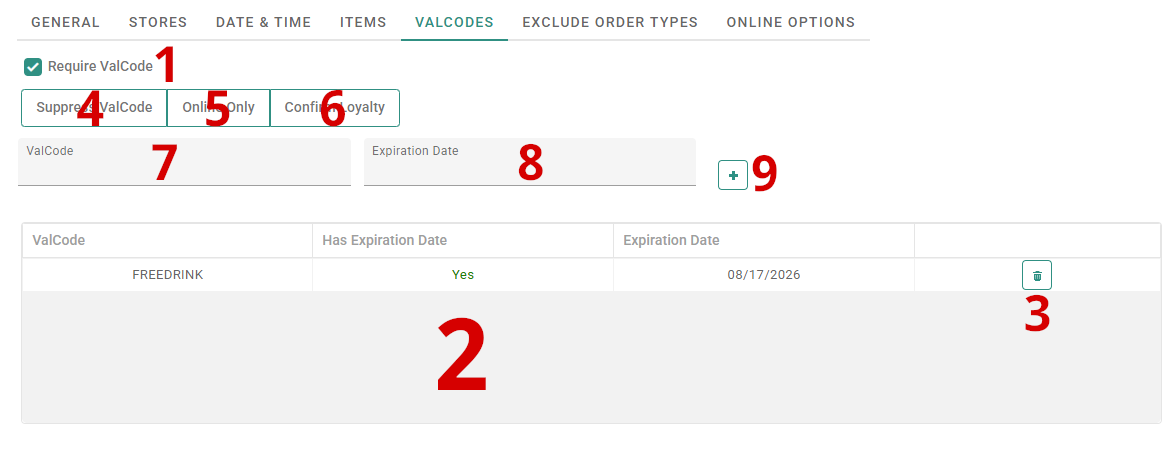
The ValCodes tab allows you to set Validation Codes (AKA Coupon Codes) for customers to use when redeeming a coupon offer.
-
(1) The 'Require ValCode' option controls whether this coupon requires a code to be redeemed
- The other options on this page will not appear unless 'Require ValCode' is enabled.
-
(2) Once enabled, the table at the bottom of the window will show all current ValCodes assigned to this coupon
- Each ValCode will have a column indicating whether it has an expiration date, followed by the date (if applicable) in the next column.
-
Multiple ValCodes can be assigned to the same coupon at the same time (as long as they are not expired).
- This allows coupons to be used under multiple codes, if desired.
- (3) A ValCode can be removed from a coupon by using the trashcan icon to the right of that ValCode.
-
The options in the middle of the screen let you add new ValCodes with the following settings:
-
(4) Suppress ValCode will remove the ValCode requirement from Online Ordering, but still require the ValCode to be entered in-store by an employee when adding it to an order
- In-Store ValCodes can be overridden by managers with the proper security enabled
- (5) Online Only will allow the coupon to be used in-store without a code, but will require the code to be entered to use the coupon online
-
(6) Confirm Loyalty is required for coupons that are part of your restaurant's loyalty rewards system, and will link the coupon to a loyalty reward and prevent customers without the reward from redeeming the coupon
- Important Note: This will require customers to log into their Online Ordering account before they try to apply the coupon to their cart, as the coupon will not be valid unless a user with the relevant loyalty reward is already logged into the ordering site.
-
(4) Suppress ValCode will remove the ValCode requirement from Online Ordering, but still require the ValCode to be entered in-store by an employee when adding it to an order
-
(7) is the ValCode string that you are adding
- ValCodes are strings of Letters and Numbers
- ValCodes are not case sensitive ("FREE" and "free" are interpreted as the same code)
-
(8) is the optional Expiration Date of the ValCode you are adding
- This code will expire on the day you set - ensure that this is set to the day after you last want the coupon to be useable.
-
Important Note: This expiration date only applies to the ValCode. The coupon will technically remain active after this date (unless the coupon also has its own expiration date set - See section (2) of the Date and Time section of this article for more details), but will not be useable until another ValCode is added
- For best practices, we recommend setting a Coupon's expiration date to the same day as its ValCode's expiration date.
- (9) Once you have finalized the settings for your new ValCode, use the green Plus icon (+) to the right to add it to the table at the bottom of this tab
Exclude Order Types: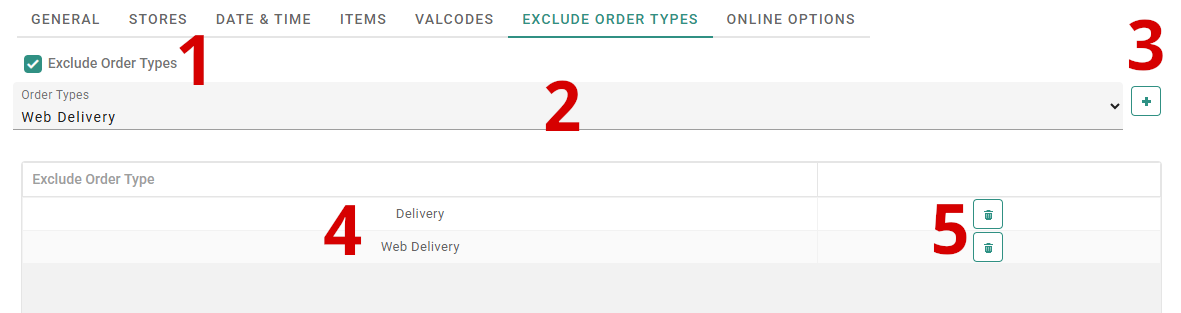
The Exclude Order Types tab allows you to restrict which order types your coupon will be valid for.
-
(1) The Exclude Order Types option toggles whether any order types are currently being filtered from using this coupon
- When this option is disabled, the remaining options on this page will be hidden.
-
(2) Once the 'Exclude Order Types' option is selected, the dropdown in the middle of the window will allow you to select an order type to add to the exclusion list
- (3) Important: The order type will not be excluded unless it is added to the exclusion list with the green Plus (+) button to the right of the dropdown menu
-
(4) The table at the bottom of this window lists the current order types on the exclusion list (the order types the coupon will be invalid for)
- In the example image above, the 'Delivery' and 'Web Delivery' order types are both excluded from this coupon.
-
Note: Online Ordering coupons will still need to be marked as online in the 'Online Options' tab to be used for Web order types, even if those types are not on the exclusion list in this tab.
- See the next section on Online Options for more details.
- (5) To remove an order type from the exclusion list, use the green Trashcan icon to the right of that order type in the table
Online Options: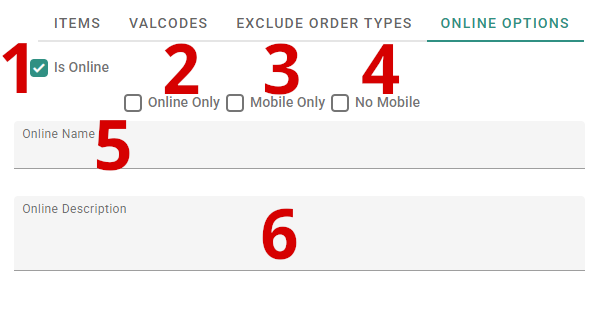
The Online Options tab contains settings to add this coupon to your HungerRush Online Ordering site, as well as configuration options to customize the online coupon for your store's needs.
-
(1) The Is Online setting controls whether your coupon will be allowed for use on your Online Ordering site and Mobile App
- When this setting is disabled, no other settings will appear on this page.
-
(2) After 'Is Online' is enabled, the Online Only option restricts the coupon to only online orders
- The coupon will not appear in your POS 'Coupons' menu and will not be able to be added to in-store orders.
- The coupon will still be available for Mobile App use when only this setting is enabled.
-
(3) Mobile Only restricts the coupon for use only on your store's Mobile App
- Coupons with this setting enabled will not function on your standard Online Ordering site and will not be available for in store use.
- (4) No Mobile allows the coupon to be used on your standard Online Ordering site, but not on your store's Mobile App
-
(5) Online Name is the name used for this coupon as it appears when a customer adds the coupon to their order
- Note: The Coupon's 'Receipt Name' will be the name listed on the order when the customer advances to the check-out page. See (3) in the General tab section above for more information on this name.
- If left empty, this will default to the Receipt Name.
-
(6) Online Description is the description seen on this coupon on your Online Ordering site.
- This description will appear alongside the coupon on the Deals tab.
- If left empty, this will default to the Description from the General tab (see (10) in the General tab section above).
Important Note on Online Coupons and the Deals Tab
In order for a coupon to appear on your Online Ordering site's Deals section, the following criteria must be met:
- The Coupon must be marked as active, and 'Require Approval' and 'Single Use Only (Once per Customer)' must both be unchecked
-
The Coupon must be within its active date/time window, and not expired
- Ex: A 'Wednesday Special' Coupon will not appear on the Deals page on Thurs-Tues, but will appear on its assigned active day
- See the Date and Time section above for more details on these settings.
-
The Coupon must not have a ValCode assigned
- See the Valcode section above for more details on these settings
-
The Coupon must not be excluded from both Online Order Types
- This includes 'Web Pickup' and 'Web Delivery'
- A Coupon may still appear on the deals page if it is only excluded from one of these categories (ex: a Pickup Only special)
- See the Excluded Order Types section above for more details on these settings
-
The Coupon must have 'Is Online' enabled in the 'Online Options' tab
- See the Online Options section above for more details on this setting.
- The Coupon has been uploaded to your online menu (see section below for details)
Saving and Uploading Your Coupons
Once you have finalized your coupon settings, select the green 'Save' button at the bottom right of any tab in the Coupon Editor window to confirm your changes.
After making any changes to a coupon, wait 1-2 minutes, then relaunch the POS software on each of your stations. If enabled for store use, the coupons should appear on the POS after the application is restarted.
Additionally, if your coupon is an online coupon, press the 'Upload Online Menu' button at the top of the Coupon Management screen to send your updated Online Coupons to your Online Ordering Site/Mobile App.
- Note: Changes to Online Ordering coupons may take up to 15 minutes to appear on the live website. We also recommend checking for the updated coupon from multiple devices, as web caching can show outdated coupon information if checking from the same device.
Having issues setting up a Coupon?
We're here to help! Contact HungerRush POS Support at (281) 971-2500 for assistance with coupon configuration or troubleshooting.
We're available 24/7, 365 days a year to assist with any concerns you may have.
Comments
0 comments
Article is closed for comments.